Duty Chart
The Duty Chart module lets admins and managers plan and assign shifts for every employee. Each employee can have their own shift schedule — different days, different timings, fully flexible. Plan daily, weekly, or monthly rosters in one place, with a clear view of who is working when across your entire team.
Key Highlights of Duty Chart
1. Shift Scheduling
Assign shifts to each employee based on your operational needs. Every employee can have a different shift — morning, afternoon, night, or any custom timing your business runs on.
2. Flexible Scheduling
The duty chart is not locked to a fixed weekly or monthly format. Schedules can be created and adjusted as needed — daily, weekly, or for any custom period that suits your business.
3. Individual Employee Shifts
Each employee gets their own shift assignment. Two employees working the same day can have completely different start and end times — the system handles each one independently.
4. Full Team Overview
View the entire team's schedule in one place. Managers can see who is assigned to which shift on any given day — making it easy to spot gaps, avoid overlaps, and plan coverage effectively.
5. Role-Based Access
Only the admin and managers with permission granted by the admin can create or edit the duty chart. Shift schedules stay accurate and managed by the right people.
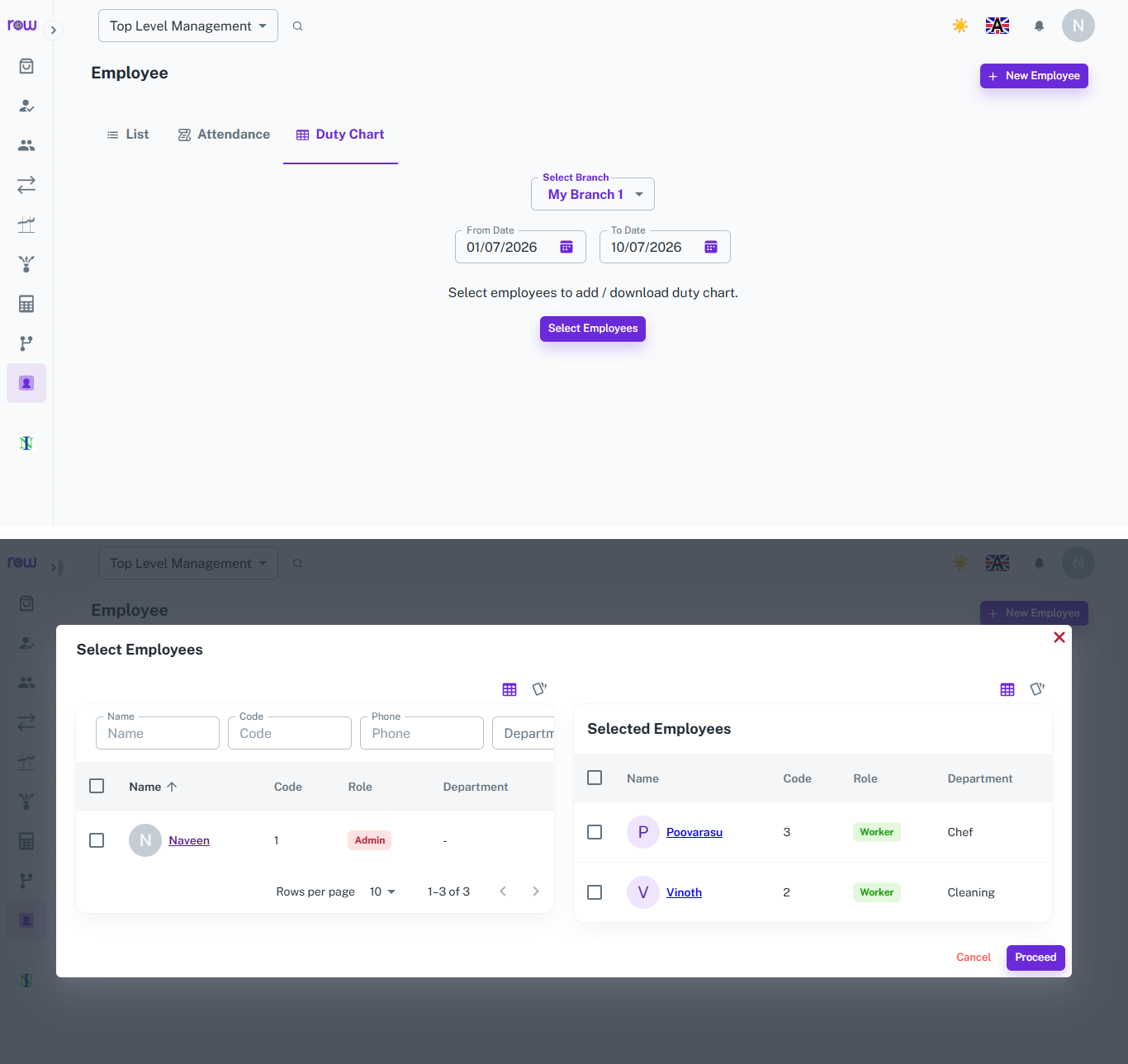
Select Employees
Overview
Quickly pick the employees you want to create or download the duty chart for, all from a single searchable list.
Key Highlights
- Set the branch, From Date, and To Date before selecting employees
- Search employees by name, code, phone, or department
- Select multiple employees using checkboxes
- Selected employees move to a separate list for easy review
- Remove any employee from the selection before confirming
- Proceed or cancel the selection at any point
How It Works
- Select the branch and set the From Date and To Date for the duty chart period
- Click Select Employees to open the popup
- Search or scroll through the employee list on the left
- Check the box next to each employee to select them
- Selected employees appear on the right under Selected Employees
- Click Proceed to confirm the selection, or Cancel to close without saving
Workflow
The manager selects the branch and date range, clicks Select Employees, searches or browses the list, checks the required employees, reviews them under Selected Employees, and clicks Proceed to move ahead with the duty chart.
Assign Duty
Overview
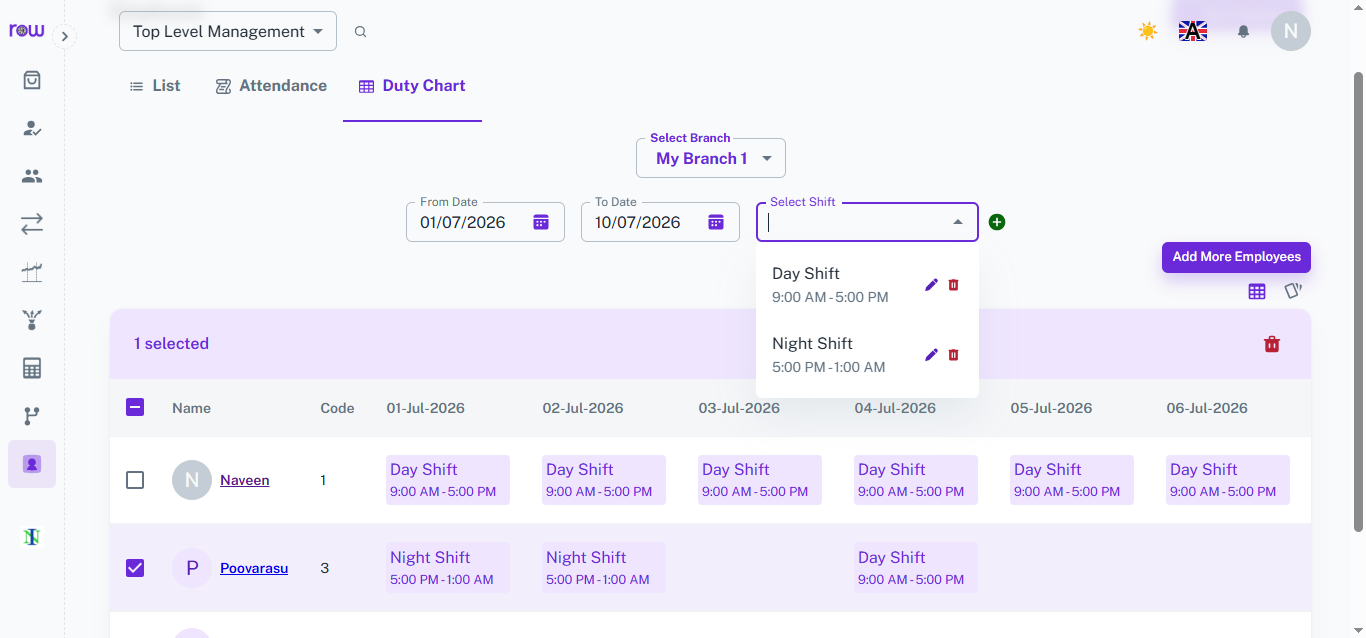
Assign shifts to selected employees across multiple dates from a single grid, making duty planning quick and organized.
Key Highlights
- Date-wise grid showing duty assignments for the selected period
- Assign a shift (Day Shift, Night Shift, etc.) to employees in bulk
- Add, edit, or delete shifts directly from the dropdown
- Select or deselect individual employees within the list
- Add more employees to the list without starting over
- Bulk delete option for selected employee rows
How It Works
- Set the From Date and To Date to define the duty chart period
- Click Select Shift and choose the shift to assign
- Use the "+" icon to add a new shift if needed, or edit/delete existing shifts
- Select the employees to assign the shift to using the checkboxes
- The chosen shift is applied across the selected date range for those employees
- Click Add More Employees to include additional staff without repeating the selection process
Workflow
The manager sets the date range, selects a shift from the dropdown, selects the required employees, and the shift gets applied across all dates in the selected period — with the option to add more employees or adjust shifts as needed.
How It Works
1. Admin or manager opens the duty chart
The authorized user opens the duty chart screen and selects the employee and the date or date range to schedule.
2. Shift is assigned
The manager assigns a shift to the employee — entering the shift start time, end time, and the days they are scheduled to work. Different employees can have completely different shift timings.
3. Duty chart is saved
Once saved, the shift is recorded against the employee for the selected dates. The full team's schedule is visible from the duty chart dashboard.
4. Schedule is adjusted as needed
If plans change — a shift swap, a day off, or a new employee joining — the manager updates the duty chart directly. Changes are reflected immediately.
Workflow
The admin or authorized manager opens the duty chart and selects the employees to schedule. For each employee, a shift is assigned — start time, end time, and the days they are rostered to work. Different employees can have completely different shift timings, all managed independently within the same system. Once saved, the full team's schedule is visible from the duty chart dashboard. If anything changes — a shift swap, additional coverage needed, or an employee's day off — the manager updates the chart directly and the changes are reflected immediately. The result is a clear, organized, and always up-to-date roster for the entire team.