KOT Management
The KOT Management module keeps your kitchen and floor staff perfectly in sync. Send orders instantly, update or cancel in real time, and transfer tables without losing a single item — all digitally, no paper tickets required.
Key Features of Restaurant KOT System
1. Smart Table Management
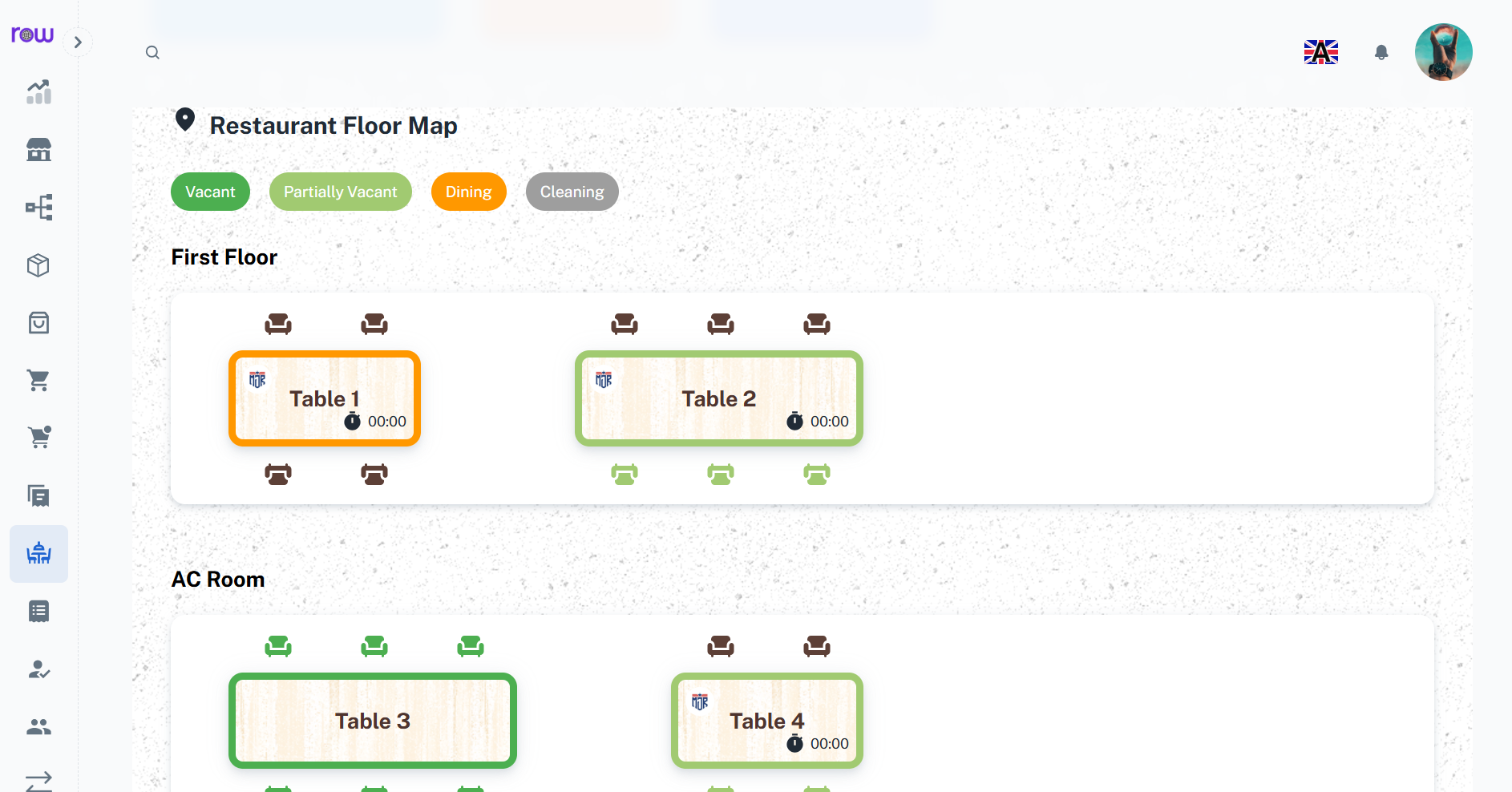
Easily configure tables with names, capacity, and locations. Monitor table status (Free, Occupied, Reserved) in real time.
2. Seamless Order Processing
Place and manage orders directly from tables. View past orders, create new ones, apply discounts, split bills, and process multiple payment methods.
3. Kitchen Integration
Orders are automatically routed to the assigned kitchens, where kitchen staff can choose to accept, decline, or mark dishes as ready, instantly notifying the server.
4. Automated Billing & Printing
Automatically calculate totals, discounts, and taxes. Generate and print bills with all details including table, items, quantity, tax, and balance.
5. Real-Time Updates & Notifications
Instant synchronization between waiters, billing staff, and kitchens. Reduces delays, improves accuracy, and enhances customer experience.
6. Tile View for KOT
Displays a summary of total restaurant orders grouped by payment type such as Card, Cash, Credit, and UPI showing the total amount and number of transactions for each.
7. Merge bills for multiple tables
Combine bills from multiple tables into a single bill for easy payment and management.
8. Captain App for Waiters
The Captain mobile app allows waiters to take orders, merge bills, and edit orders directly from their mobile devices. The app also works offline.
How It Works
1. Take Orders from Tables
Waiters select a table, add items, and confirm orders which directly reach the kitchen.
2. Prepare & Serve
Kitchen staff prepares items and marks them as ready. Waiters are notified to serve customers quickly.
3. QR Scan & Order Popup
When you scan the QR code of an order, a popup appears on the screen showing complete order details. From this popup, you can edit the order, make necessary changes, and complete the order directly without leaving the current page.
4. Generate & Print Bill
The system auto-generates the final bill with all charges and allows instant printing for customers.
Tables
Overview
The Tables module allows restaurant staff to create, configure, and manage seating arrangements. By categorizing tables by location and capacity, staff can quickly allocate guests, reduce confusion during rush hours, and improve service flow.
Want to understand the Table Creation Module in detail? Download the full documentation below:
Key Features
-
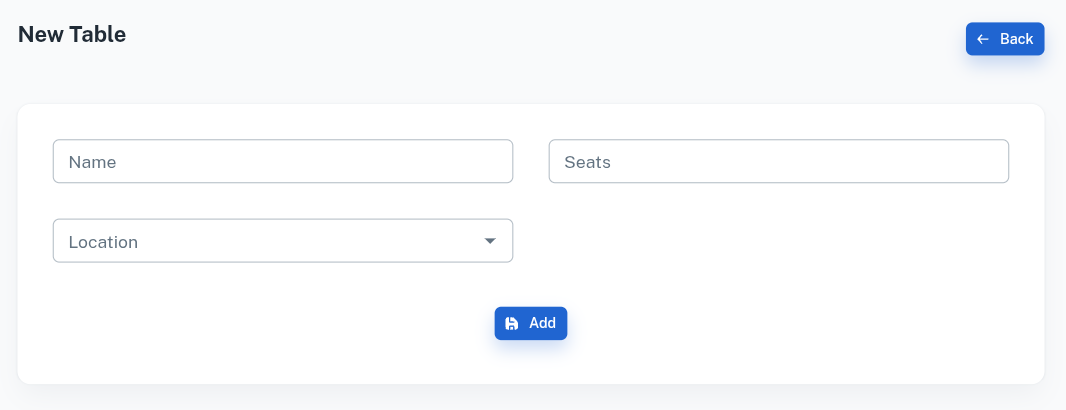
Add New Table – Define table details such as Name, Seating Capacity, and Location (e.g., AC, Non-AC, First Floor).
-
Table Dashboard – All active tables are visible in a single screen for quick identification and order-taking.
-
Status Tracking – Tables can be shown as Free, Occupied, or Reserved, improving floor management efficiency.
-
Quick Order Access – Staff can click a table to directly start adding an order for that guest.
Orders
Overview
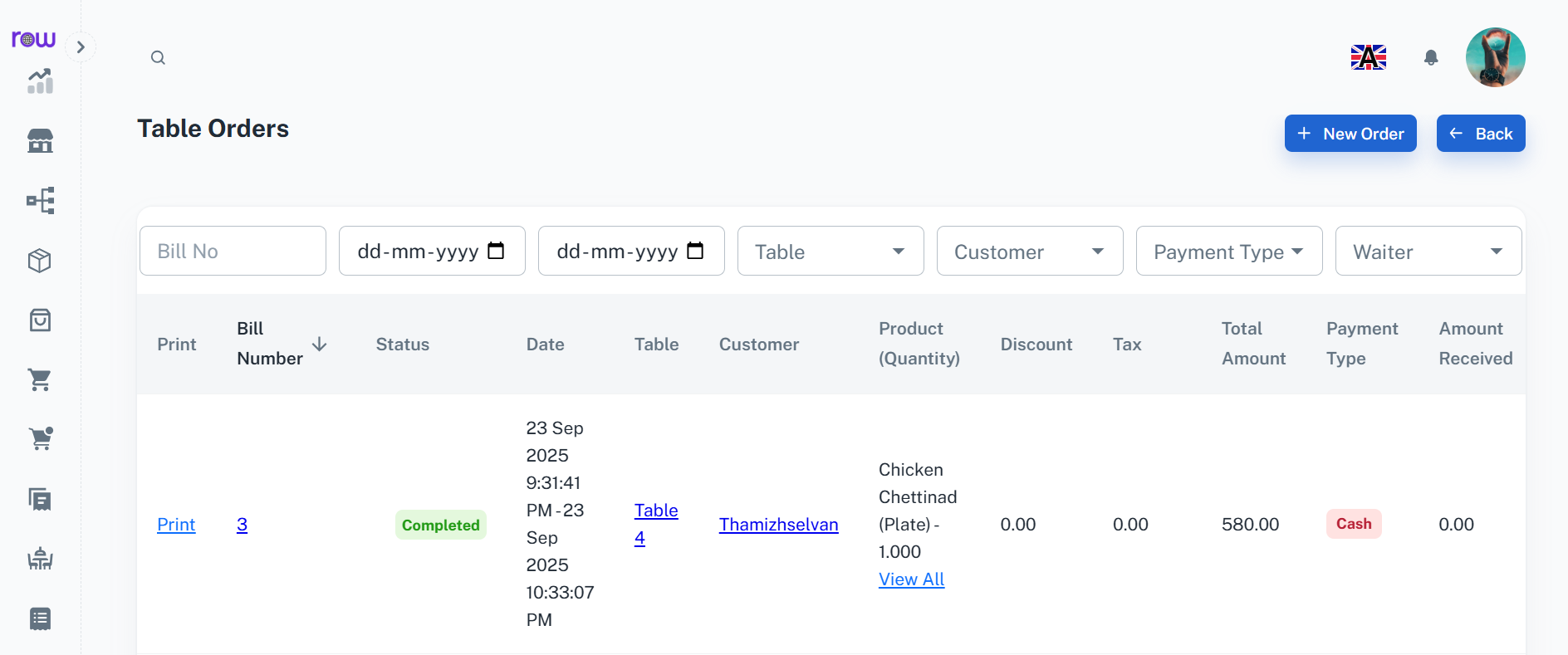
The Orders module ensures smooth handling of customer requests from start to finish. Staff can review previous orders, create new ones with complete details, and process payments instantly. Every order is linked to its respective table, ensuring proper tracking and accountability.
Want to understand the Table Order Module in detail? Download the full documentation below:
Key Features
-
Order History – View all past transactions with details such as Bill No, Date, Table, Customer, Products, Discounts, Taxes, and Payments.
-
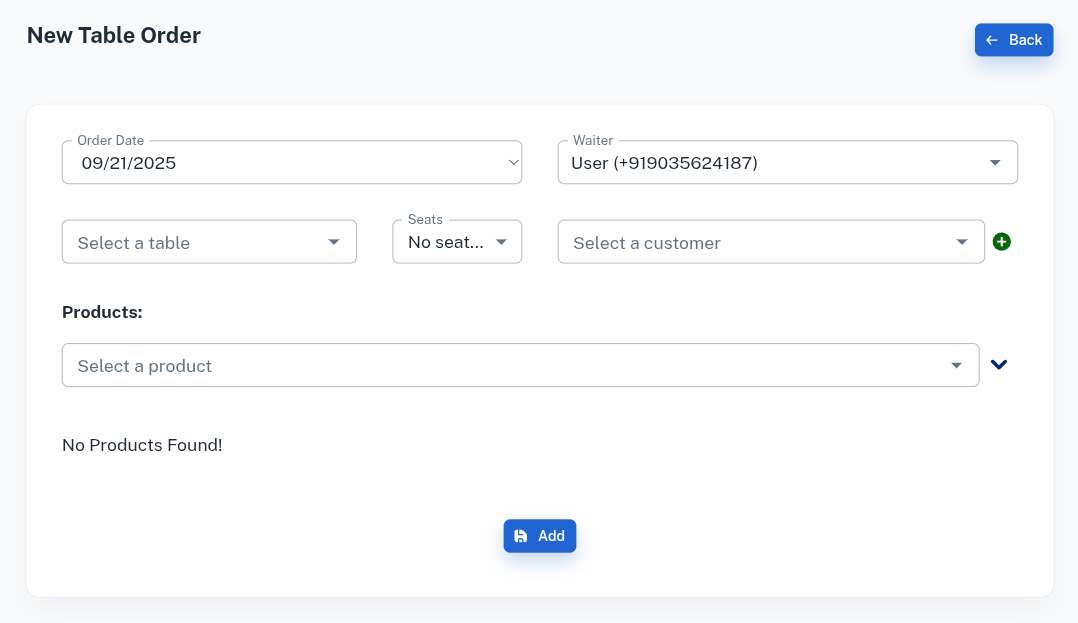
New Dine-In Form – Enter Date, Waiter (Done By), Table, Seats, Customer (existing or new), and add Products with variant, unit, quantity, cost, tax, and price breakdown.
-
New Pick-Up Form – Enter Date, Waiter (Done By), Customer (existing or new), and add Products with variant, unit, quantity, cost, tax, and price breakdown.
-
Billing Options – Supports Special Discounts, Payment Methods (Cash, Card, UPI), Round-off adjustments, and multiple payment entries.
-
Edit & Update – Modify existing orders and record additional payments if the customer adds more items later.
-
Bill Printing – Generate and print the customer bill directly from the order screen.
Workflow
When a waiter takes an order from the table section, it is automatically sent to the respective kitchen based on the product configuration. The kitchen staff see the items in their dashboard, cook them, and mark them as Ready. Once marked ready, the waiter is notified to serve the items. Finally, the system generates the bill which can be printed and settled in the Order section.