Outdoor Orders
The Outdoor Orders module takes the chaos out of catering. Manage menus, track orders, assign vessels, and monitor deliveries for external events — all from one place, without a single missed detail.
Outdoor Module
Overview
The Outdoor Module is designed to manage catering orders for external events such as parties, functions, or gatherings. It allows you to create menus, track orders, and manage vessels used for food delivery.
Want to understand the Outdoor Module in detail? Download the full documentation below:
Key Features
-
Outdoor Menu
- Displays a list of all pre-defined outdoor menus.
- Table Columns:
- Name – Menu name
- Amount – Price of the menu
- Products – Items included in the menu
- Active – Status (Active/Inactive)
- Created At – Date of creation
- Use the New Outdoor Menu button to create a new menu. After creation, you can add products and quantities to it.
- Each menu has Edit and Delete options for updates or removal.
-
Vessels
- Tracks vessels used for delivering outdoor orders.
- Table Columns:
- Name – Vessel name
- Total – Total count available
- Available – Currently available count
- Active – Status
- Created At – Date added
- Use New Vessel to add a new vessel type with total and available counts.
- Helps monitor vessel issuance and returns for order deliveries.
-
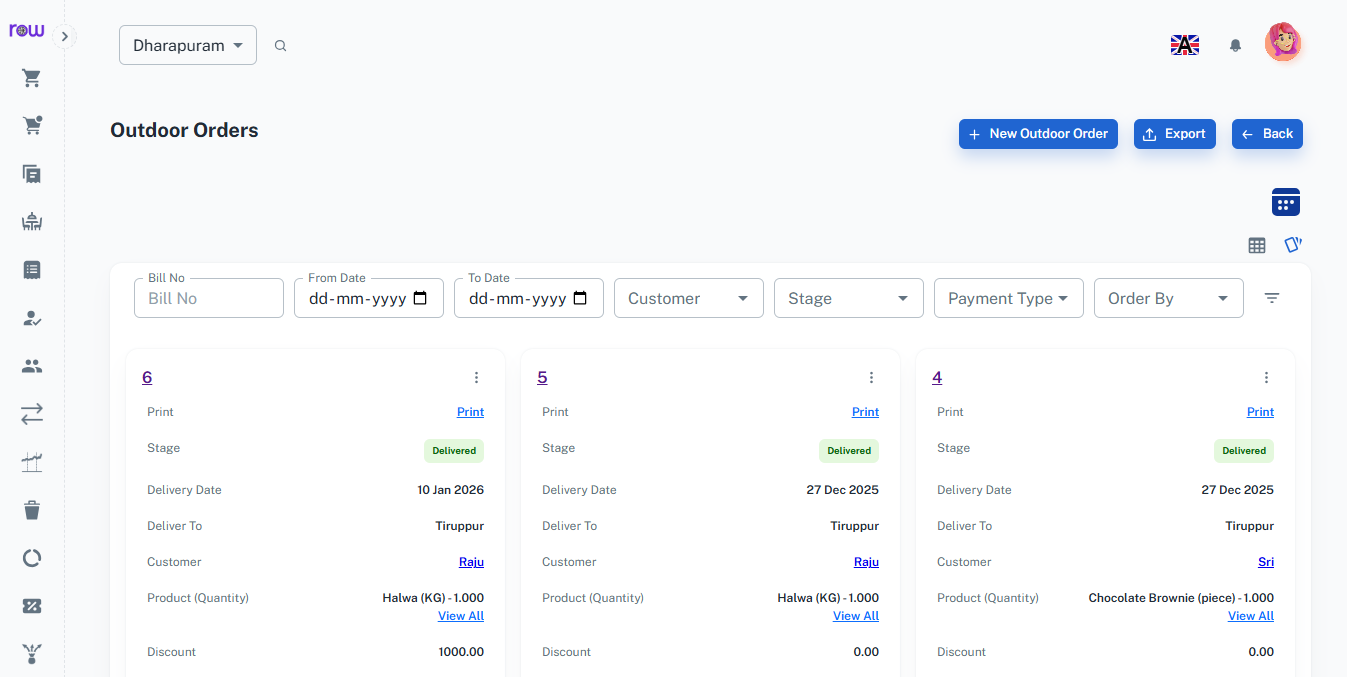
Outdoor Orders
- Contains three main tables:
- All Orders – Shows all placed orders with details.
- Pending Outdoor Orders – Orders yet to be fulfilled.
- Pending Outdoor Order Vessels – Vessels yet to be returned.
- Order Table Columns:
- Bill # – Unique order number
- Stage – Current order status (e.g., Order Placed)
- Order Date
- Delivery Date
- Deliver To – Delivery location
- Customer
- Product (Quantity) – Items ordered
- Discount
- Tax
- Total Amount
- Payment Type
- Amount Received
- Balance Amount
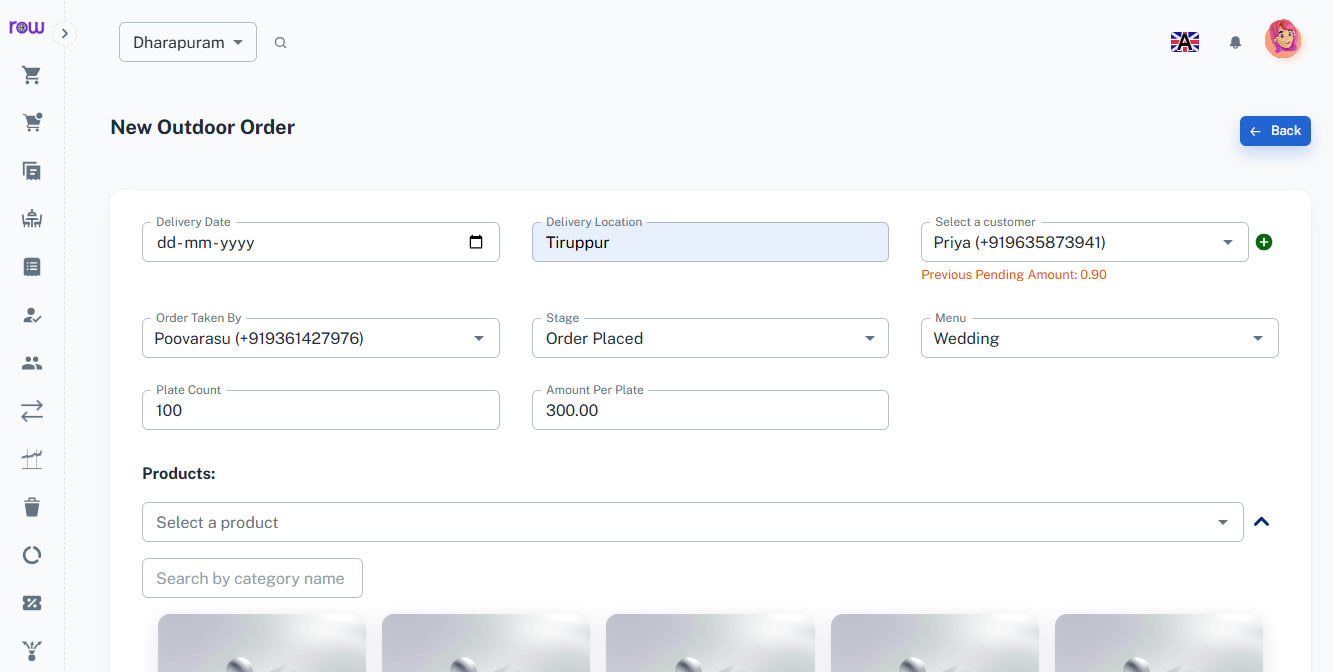
- Use New Outdoor Order to create an order with:
- Order & Delivery dates
- Customer selection
- Menu/Product selection
- Plate count & amount per plate
- Loading/Unloading & Transport charges
- Tax, Discount, Payment Type
- Vessel assignment (if applicable)
- Each order can be edited to update status or details, including order tracking.
-
Workflow Summary
- Create menus in Outdoor Menu with products and pricing.
- Add vessels in Vessels for delivery tracking.
- Place new orders via New Outdoor Order with full event details.
- Track order progress and update stages via the edit option.
- Monitor pending orders and vessel returns in respective tables.
- Use filters (Bill No, Date, Customer, Stage, Payment Type) to search orders.
Outdoor Quotation
Overview
The Outdoor Quotation lets you give your customer a price for an event before the order is confirmed. Create a quotation with the menu, plate count, and charges, print or download it for the customer, and convert it into an Outdoor Order with one click once the customer agrees.
Key Features
-
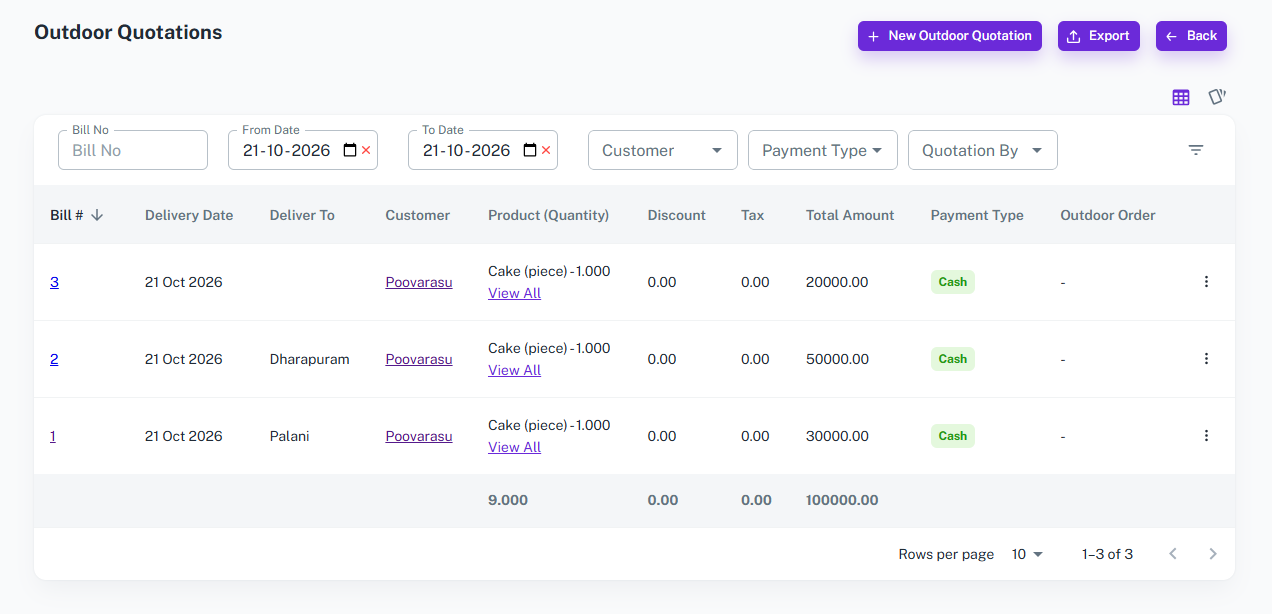
Outdoor Quotation List
- Displays all quotations in one table, with the total quantity, discount, tax, and amount shown at the bottom.
-
Table Columns:
- Bill # – Unique quotation number
- Delivery Date
- Deliver To – Delivery location
- Customer
- Product (Quantity) – Items in the quotation
- Discount
- Tax
- Total Amount
- Payment Type
- Outdoor Order – The order created from the quotation
- Use filters (Bill No, Date, Customer, Payment Type, Quotation By) to find any quotation quickly.
- Each quotation has Print, Edit, Convert to Outdoor Order, and Delete options.
- Use Export to export the list for sharing or record-keeping.
-
New Outdoor Quotation
-
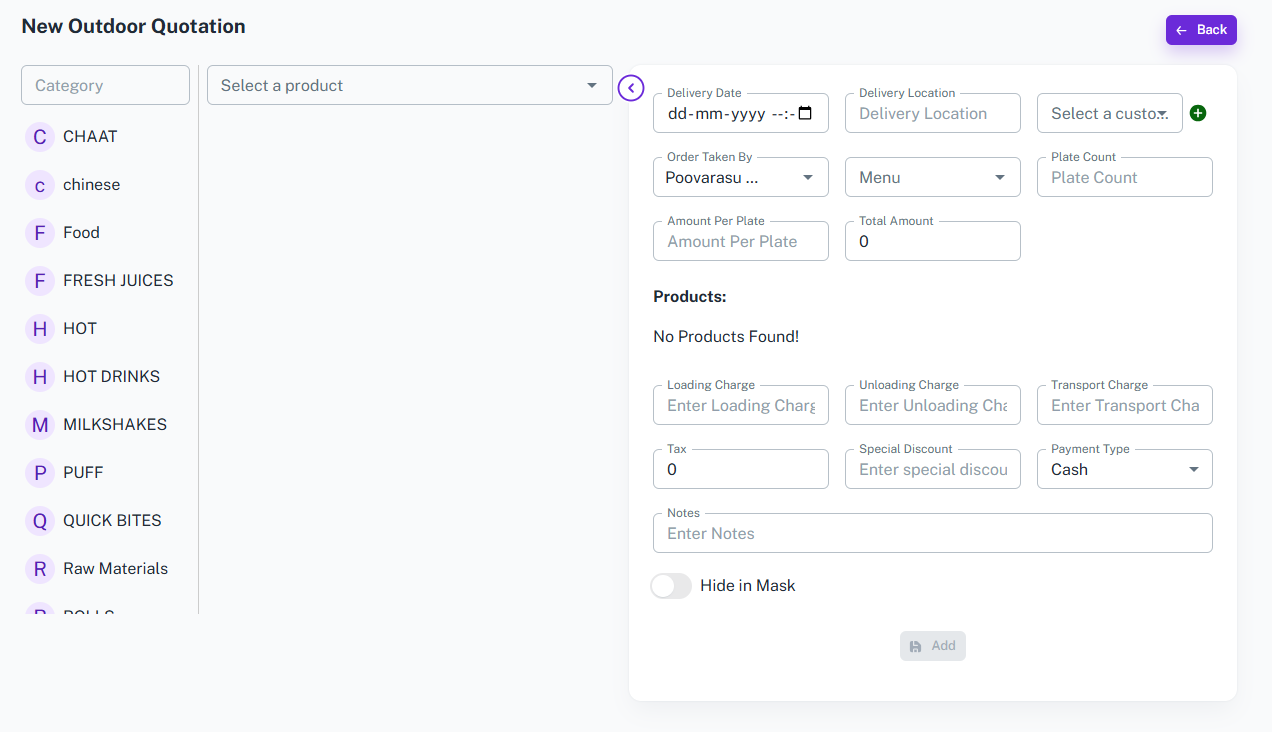
Use the New Outdoor Quotation button to create a
quotation with:
- Delivery date & delivery location
- Customer selection, or add a new customer with the + icon
- Quotation taken by
- Menu selection
- Plate count & amount per plate (total amount is calculated for you)
- Products with quantity, from the category list or product dropdown
- Loading, Unloading & Transport charges
- Tax, Special Discount, Payment Type
- Notes
- Hide in Mask option
-
Use the New Outdoor Quotation button to create a
quotation with:
-
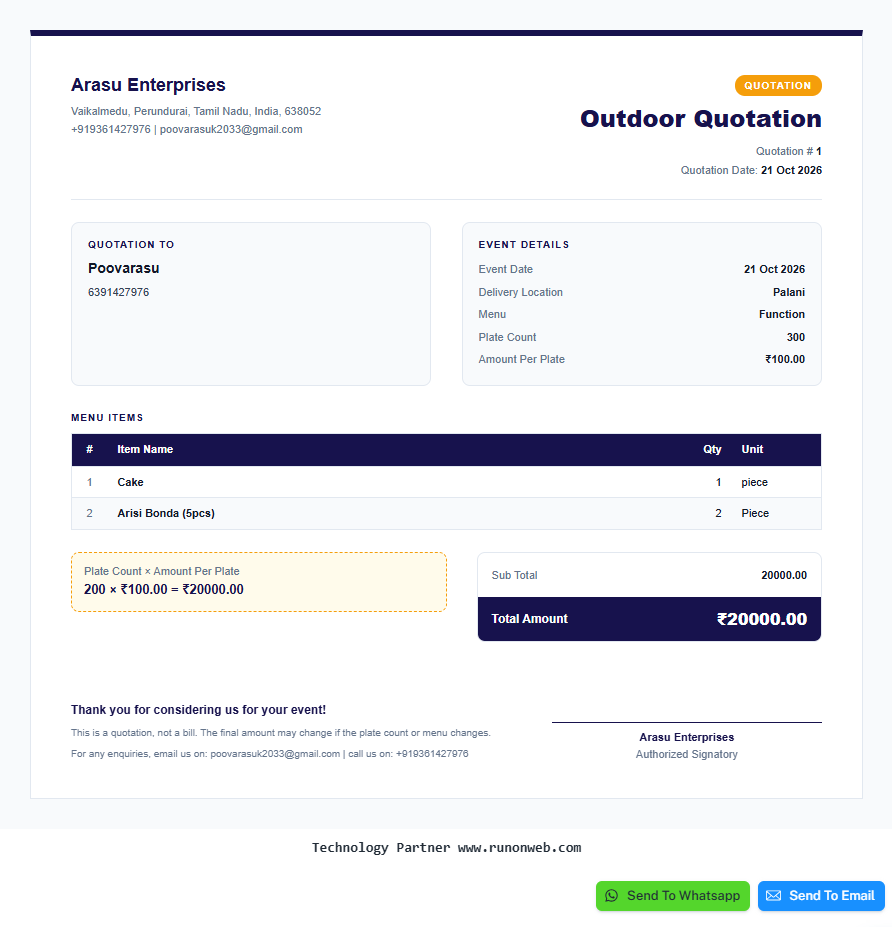
Print and Download
- Preview the quotation as a professional bill, then Print or Download it to share with the customer.
-
The quotation includes:
- Business name, address, and contact details
- Quotation number and date
- Customer name and phone number
- Event details – Event Date, Delivery Location, Menu, Plate Count, Amount Per Plate
- Menu items – Item Name, Quantity, Unit
-
Edit and Convert to Outdoor Order
- Edit a quotation to update the date, menu, products, or charges whenever the customer asks for a change.
- The customer's total pending amount is shown while you edit, so you know their dues at a glance.
- Print the quotation directly from the edit screen.
- Once the customer confirms, click Convert To Outdoor Order to create the outdoor order from the quotation.
-
Workflow Summary
- Create a quotation in New Outdoor Quotation with the event details and menu.
- Print or download it and share it with the customer.
- Edit the quotation if the customer asks for changes.
- Convert it to an Outdoor Order once the customer confirms.
- Use filters (Bill No, Date, Customer, Payment Type, Quotation By) to search quotations.
Workflow
When a waiter takes an order from the table section, it is automatically sent to the respective kitchen based on the product configuration. The kitchen staff see the items in their dashboard, cook them, and mark them as Ready. Once marked ready, the waiter is notified to serve the items. Finally, the system generates the bill which can be printed and settled in the Order section.