Shift Management
The Shift Management module is where you define the working shifts your business runs on. Create named shifts with fixed start and end times — and use them across attendance tracking, salary calculations, and duty chart planning. One place to set up your shifts, everywhere they are needed.
Key Highlights of Shift Management
1. Create Shifts
Define each shift with a name, start time, and end time — for example, Morning Shift 6am–2pm, Afternoon Shift 2pm–10pm, or Night Shift 10pm–6am. Any shift pattern your business runs can be created and saved.
2. Multiple Employees Per Shift
A single shift can be assigned to multiple employees. If ten staff members work the morning shift, they all run under the same shift definition — consistent and easy to manage.
3. Linked to Attendance
Shifts feed directly into attendance tracking. When attendance is recorded, the system knows the expected start and end time for each employee — making buffer time, late deductions, and overtime calculations accurate.
4. Linked to Salary
Since shifts define working hours, they are used in salary calculations. The system knows when an employee should have started, when they should have finished, and calculates pay accordingly.
5.Linked to Duty Chart
Shifts created here are used when building the duty chart. Managers pick from the defined shifts when scheduling employees — keeping scheduling consistent and reducing manual entry.
6. Role-Based Access
Only the admin and managers with permission granted by the admin can create or edit shifts. Shift definitions stay accurate and controlled by the right people.
Create New Shift
Overview
Create custom shifts with defined start and end times, so attendance and duty charts always reflect accurate working hours.
Key Highlights
- Add a shift with a custom name, start time, and end time
- Duration is calculated automatically based on the times entered
- New shift becomes instantly available for attendance and duty chart assignment
- Simple popup form for quick shift creation
How It Works
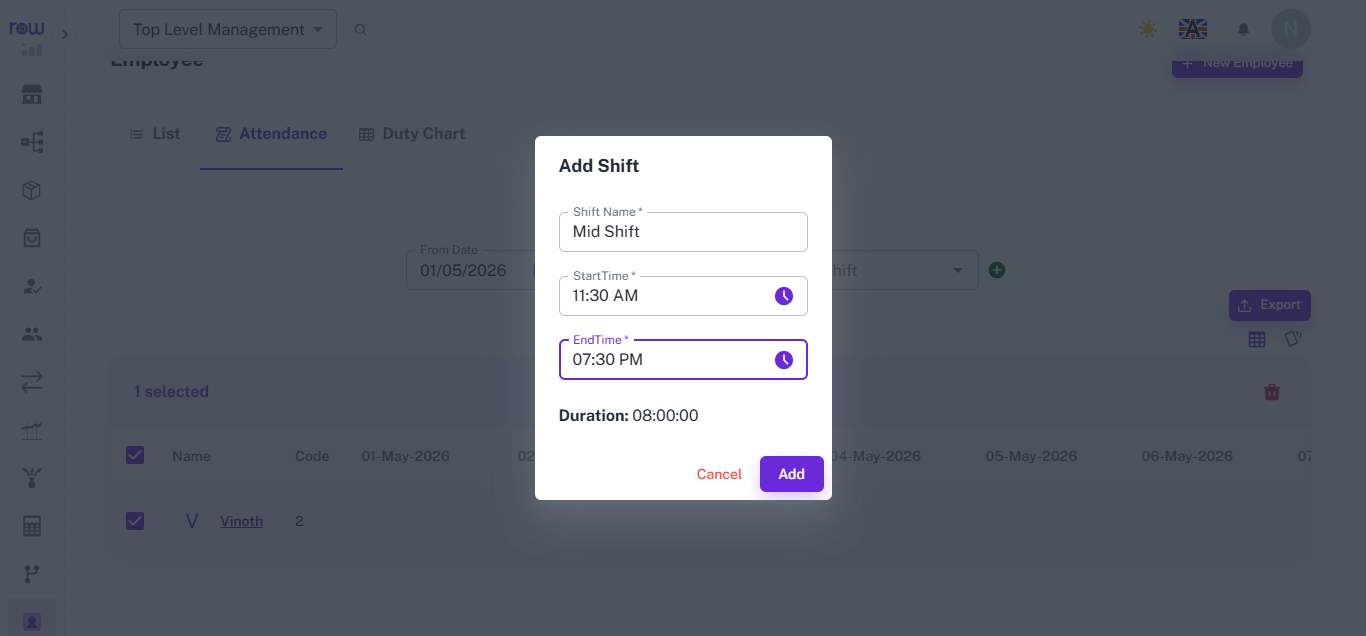
- Click the "+" icon next to Select Shift
- Enter the Shift Name
- Set the Start Time and End Time
- Duration is auto-calculated and displayed
- Click Add to save the shift, or Cancel to discard
Workflow
The manager clicks the "+" icon to open the Add Shift popup, enters the shift name along with start and end times, reviews the auto-calculated duration, and clicks Add to save the new shift for use in attendance and duty chart.
Select Shift
Overview
Choose from your list of created shifts to quickly assign working hours to employees for attendance or duty chart planning.
Key Highlights
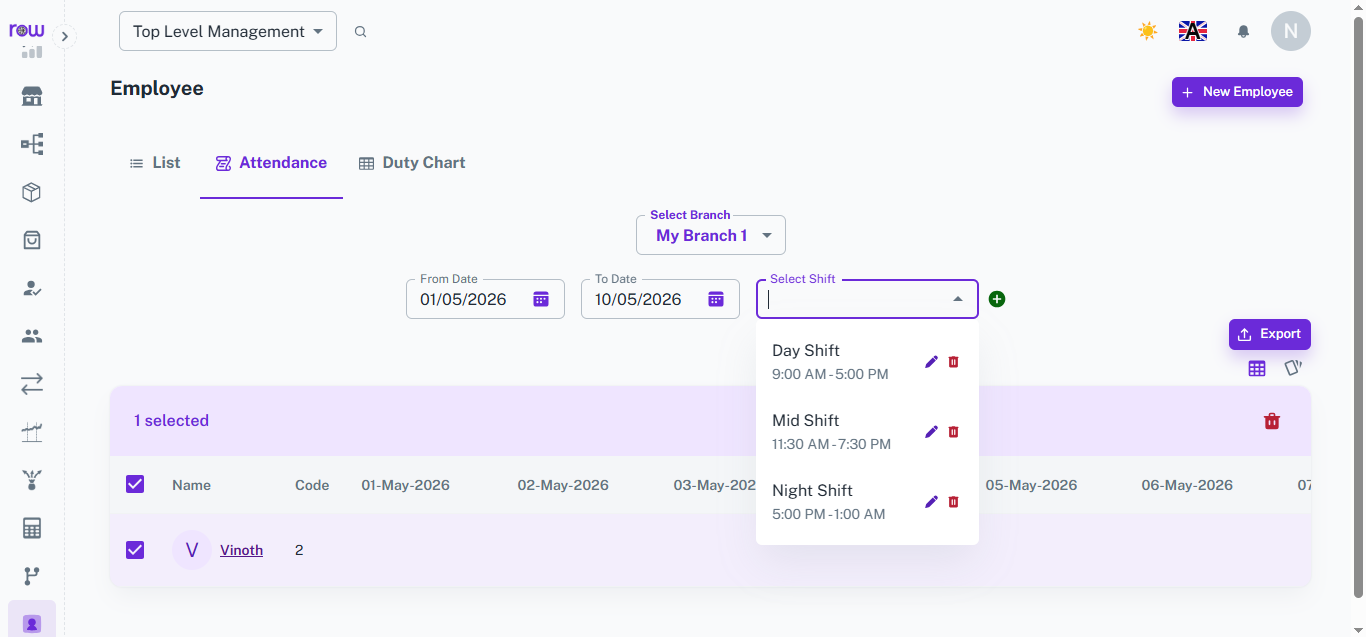
- Dropdown list of all created shifts with their timings
- Edit or delete any existing shift directly from the list
- Same shift list used across both Attendance and Duty Chart
- Add a new shift on the go without leaving the screen
How It Works
- Set the branch, From Date, and To Date
- Click Select Shift to view the list of available shifts
- Browse shifts along with their start and end times
- Click a shift to apply it to the selected employees
- Use the edit or delete icons to update or remove a shift from the list
Workflow
The manager sets the date range, opens the Select Shift dropdown, reviews the available shifts with their timings, and selects the required shift to apply it to the chosen employees for attendance or duty chart.
How It Works
1. Admin or manager creates a shift
The authorized user opens shift management and creates a new shift — entering the shift name, start time, and end time. The shift is saved and available to use immediately.
2. Shift is assigned to employees
When building the duty chart, the manager selects the defined shift and assigns it to one or more employees. Multiple employees can share the same shift.
3. Attendance is tracked against the shift
When attendance is recorded, the system compares the employee's in time and out time against their assigned shift — applying the buffer window, flagging late arrivals, and tracking overtime automatically.
4. Salary is calculated using shift data
At salary time, the shift's start and end times are used as the reference point for each employee's working hours — ensuring deductions and overtime are calculated accurately and consistently.
Workflow
The admin or authorized manager creates the shifts the business runs on — giving each one a name, start time, and end time. These shifts are then available across the entire system. When building the duty chart, managers pick from the defined shifts and assign them to employees — one shift can cover multiple staff members. When attendance is recorded, the system uses the assigned shift to determine expected working hours, apply the buffer window, flag late arrivals, and track overtime. At salary time, the same shift data is used as the reference point for calculating each employee's pay — accurately, consistently, and without any manual cross-referencing.