Stock Count
Count what is on the shelf and set your stock to it. See exactly what went missing, with the value of every difference.
Know What Really Went Missing
From counting the shelf to completing the count, our system sets your stock to the real quantity and keeps every difference for your Production Cost Report.
Key Highlights of Stock Count Solution
1. Count in Any Unit
Enter the counted quantity in any unit of the product, and leave a product empty to skip it.
2. Instant Shortage and Surplus
See the shortage, surplus, and net difference in rupees as you count, with the difference and value shown for each product.
3. Auto-Set Stock Levels
When you complete the count, the stock of every counted product is set to the quantity you counted.
How It Works
1. Start a New Count
Go to the menu and open the Stock Count screen. Click New Count, select the date, and add a note if needed to start the stock count.
2. Enter What You Count
Search for a product, filter by category, and enter the counted quantity. The difference and its value are shown instantly.
3. Save Draft or Complete
Save the draft to continue later, or click Complete Count to update the stock to the quantities you counted. Once you complete the count, the entered quantities are updated directly in the stock.
4. Review the Differences
Open the completed count to see the shortage, surplus, and net difference of each product. You can also cancel the latest completed count of a location.
Stock Count Dashboard
Overview
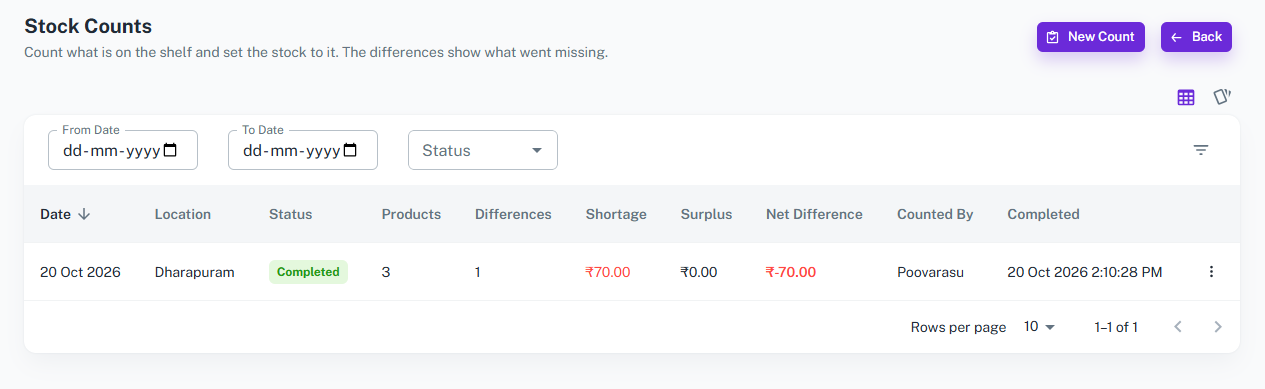
The Stock Count Dashboard shows all counts of your location in a table, allowing you to filter by date and status, view count details, and start a new count.
Key Features
-
Count List Table
-
Shows all previous stock counts with full details.
-
Columns include: Date, Location, Status, Products, Differences, Shortage, Surplus, Net Difference, Counted By, Completed.
-
Each count is marked as Draft or Completed, so you can quickly find the counts you still need to finish.
-
-
Filter Options
-
Filter counts by date range and status to find any count in seconds.
-
-
Navigate to New Count
-
A dedicated New Count button to quickly start a stock count.
-
New Count
Overview
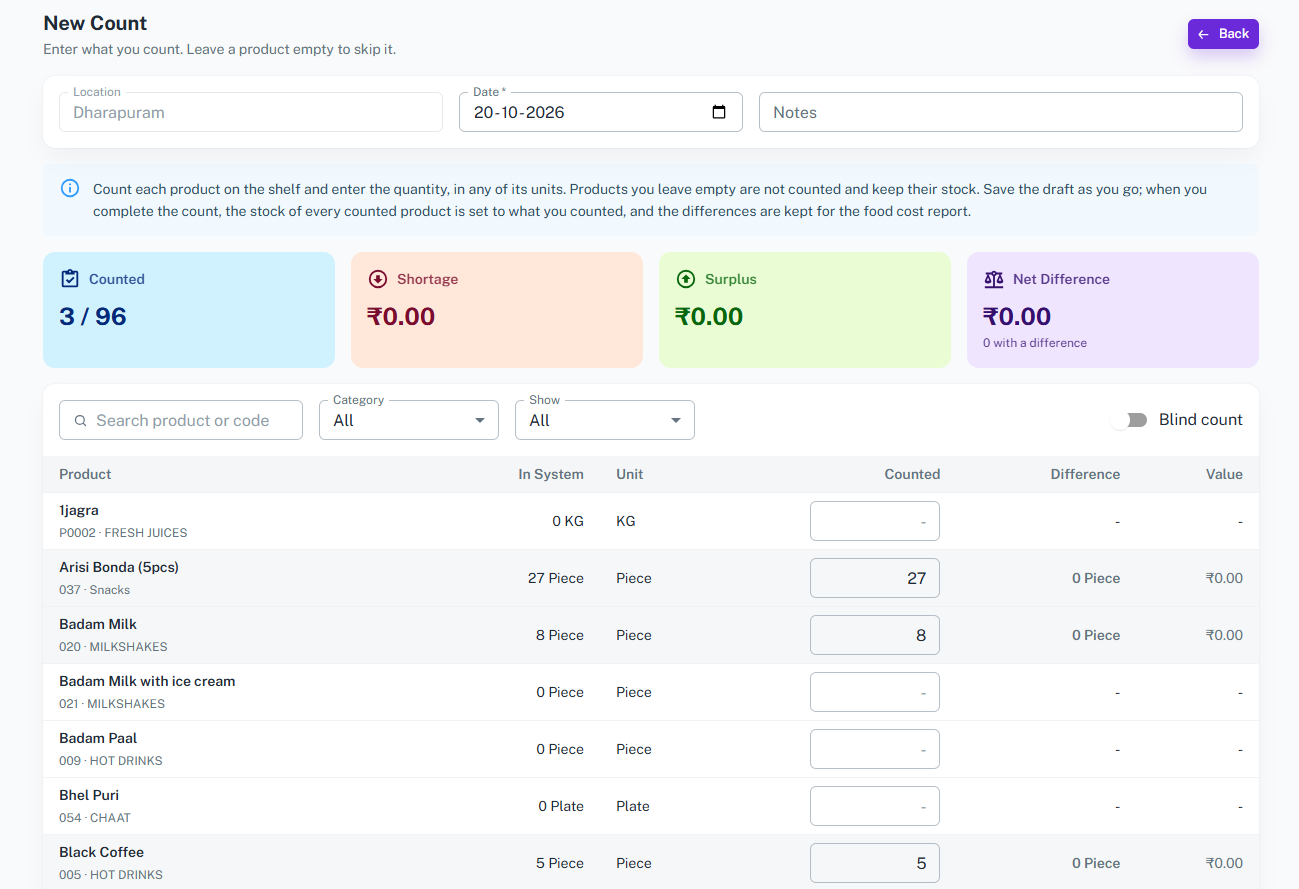
The New Count page lets you enter what you counted on the shelf. Products you leave empty are not counted and keep their stock.
Key Features
-
Count Form
-
Location, Date, and Notes for the count.
-
Product list with columns: Product (with code and category), In System, Unit, Counted, Difference, Value.
-
Search by product name or code, and filter by category to count one shelf at a time.
-
Blind count option to count without being influenced by the system quantity.
-
-
Live Count Summary
-
Shows how many products you have counted out of the total, for example 3 / 96.
-
Shortage, Surplus, and Net Difference update as you enter the counts.
-
Shortages are highlighted in red, so you can spot the problem products at a glance.
-
-
Save, Complete or Delete
-
Save Draft to continue the count later.
-
Complete Count to set the stock of every counted product to what you counted. The differences are kept for the Production Cost Report.
-
Delete Draft to remove a count you no longer need.
-
Stock Count Details
Overview
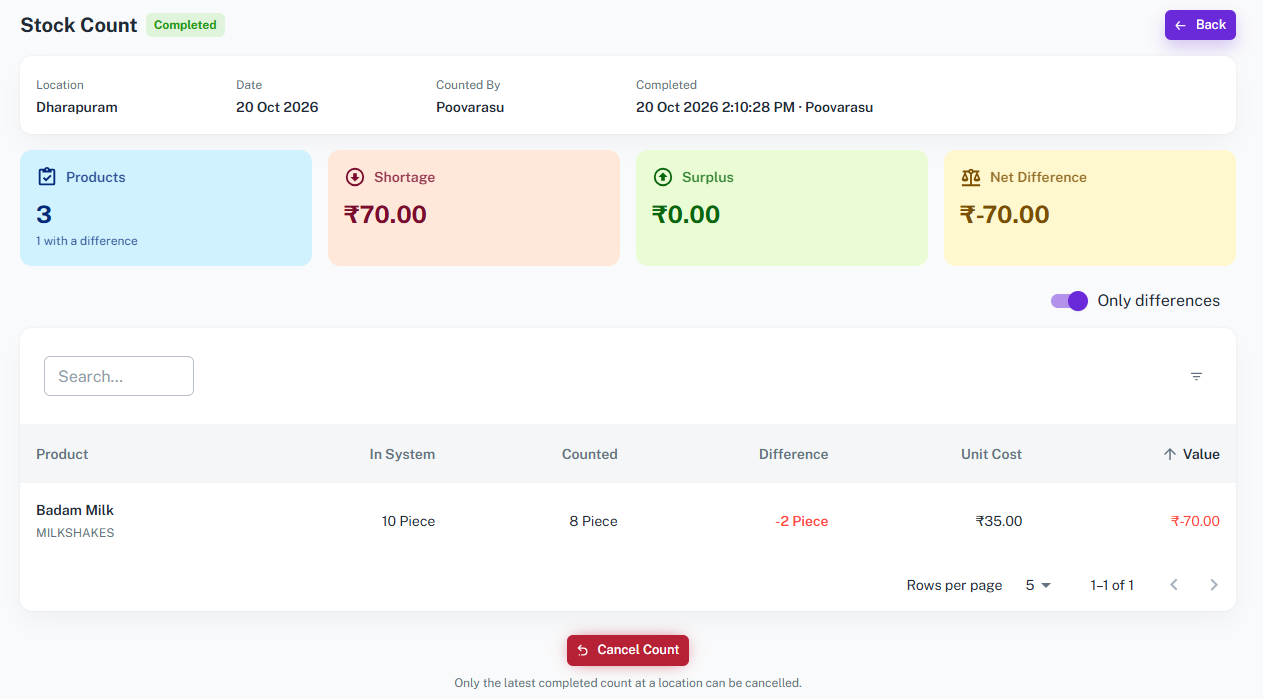
The Stock Count Details page shows the result of a completed count, with the shortage, surplus, and value of every difference.
Key Features
-
Count Summary
-
Shows the location, date, who counted, and when the count was completed.
-
Summary cards show the number of products counted, Shortage, Surplus, and Net Difference.
-
-
Product Differences
-
Columns include: Product, In System, Counted, Difference, Unit Cost, Value.
-
Search for a product, or use the Only differences toggle to see just the products that did not match.
-
-
Cancel Count
-
Cancel the latest completed count of a location with a single click.
-
Only the latest completed count at a location can be cancelled.
-
Overall Features of the Stock Count Module
-
Accurate Stock Levels
-
Set the stock of every counted product to what is really on the shelf.
-
Products you leave empty are skipped and keep their stock.
-
-
Flexible Counting
-
Save drafts as you go and complete the count when you are ready.
-
Count in any unit of the product, with blind count available.
-
-
Clear Loss Visibility
-
See shortage, surplus, and net difference in rupees for every count.
-
Differences are kept for the Production Cost Report to show what really went missing.
-
-
Controlled and Traceable
-
Every count records the location, date, counted by, and completed time.
-
Only the latest completed count of a location can be cancelled, keeping your records safe.
-
Why Choose Our Stock Count?
Our Stock Count module gives you a simple way to match your
system stock with what is really on the shelf, with every
difference recorded.
Find shortages early, protect your profit, and keep your
inventory and cost reports accurate and trustworthy.