WhatsApp Marketing
The WhatsApp Marketing module helps businesses communicate directly with customers and suppliers through WhatsApp. Send template-based messages to multiple recipients, create reusable message templates, receive customer replies, track failed messages, and maintain a complete communication history from one centralized platform.
Key Highlights of WhatsApp Marketing
1. Send Bulk Messages
Send WhatsApp messages to selected customers or suppliers using approved templates, with support for selecting up to 30 recipients at a time.
2. Create Message Templates
Create reusable WhatsApp templates with customizable headers, body content, footers, languages, categories, quick replies, and call-to-action options.
3. Track Incoming Messages
View replies and incoming WhatsApp messages from customers and suppliers directly from the system.
4. Monitor Failed Messages
Identify messages that failed to send and view their status and error information for easy troubleshooting.
5. Complete Message History
Maintain a complete history of WhatsApp communication, including sent messages, received messages, templates used, status, and activity dates.
Send Messages
Overview
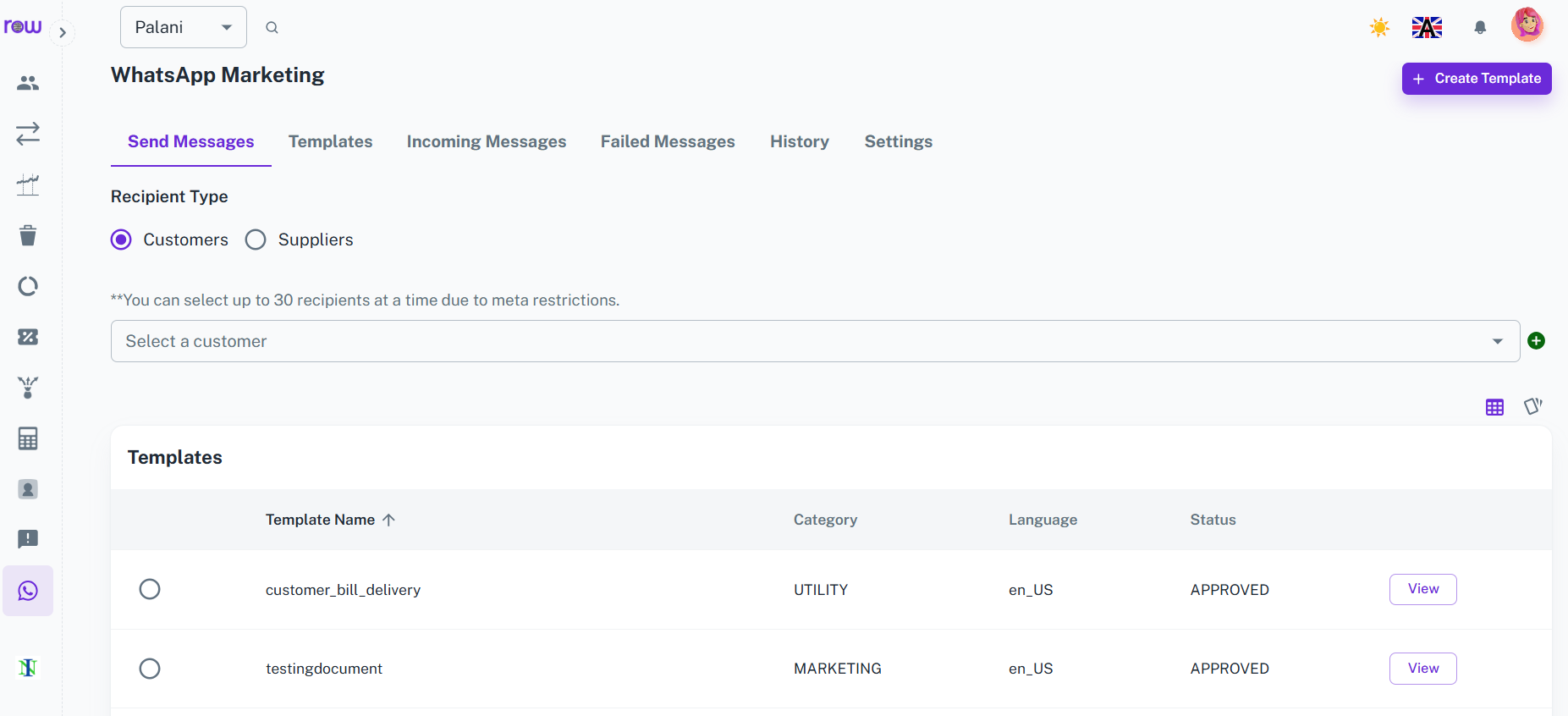
Send WhatsApp messages directly to customers or suppliers using predefined message templates. Select multiple recipients, choose the required template, and send messages from a single screen.
Key Highlights
- Send messages to customers
- Send messages to suppliers
- Select up to 30 recipients at a time
- Use predefined WhatsApp templates
- Send messages to multiple recipients
- Track message delivery status
How It Works
- Select the recipient type – Customer or Supplier.
- Select the required recipients.
- Choose the WhatsApp message template.
- Review the message details.
- Click Send to deliver the message.
Workflow
The user selects customers or suppliers, chooses up to 30 recipients, selects the required WhatsApp template, and sends the message. The system processes the messages and records their status for future tracking.
Templates
Overview
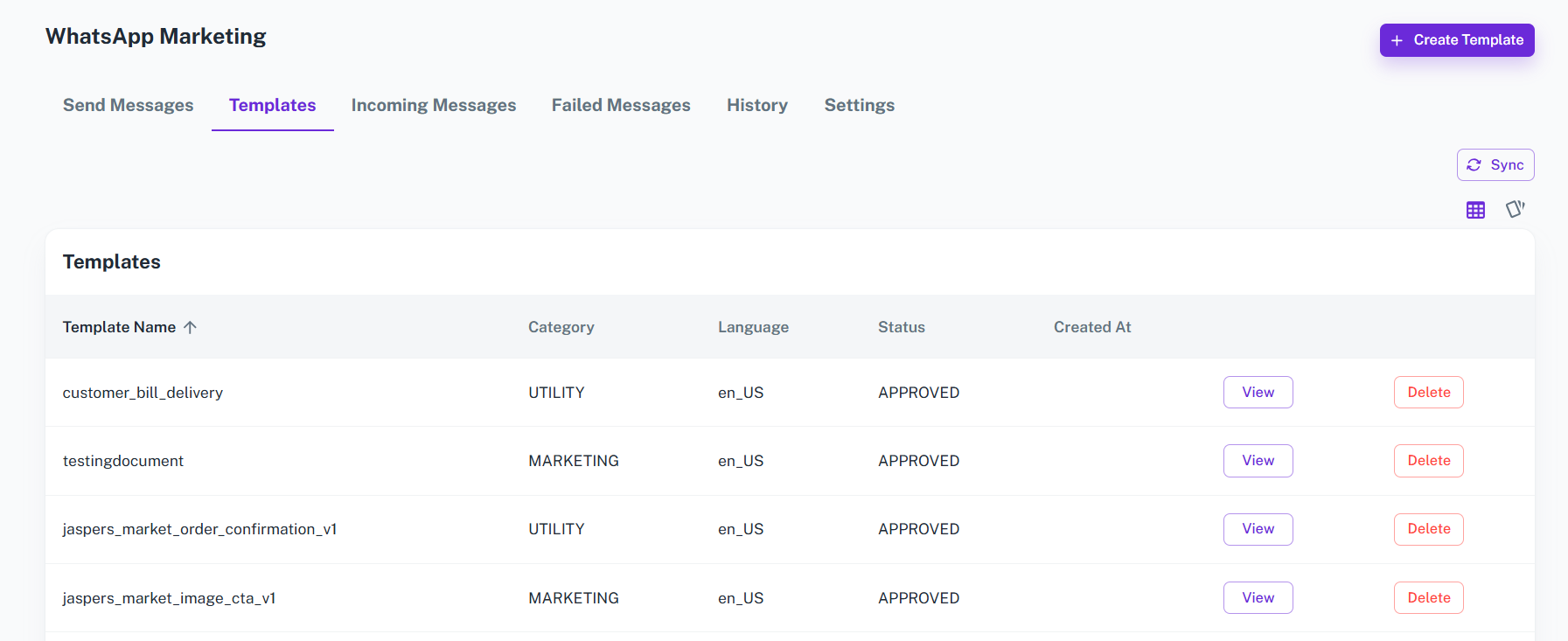
Create and manage reusable WhatsApp message templates for marketing, notifications, reminders, and other business communication. Templates help maintain consistent messaging and simplify repeated communication.
Key Highlights
- Create reusable message templates
- Define template name and category
- Select template language
- Configure message header
- Create customizable message body
- Add footer content
- Use variables for dynamic content
- Add Quick Reply and Call To Action options
- Preview templates before creation
How It Works
- Enter the Template Name.
- Select the Category.
- Choose the Language.
- Select the Header Type if required.
- Enter the message Body.
- Add Footer content if required.
- Configure Quick Reply or Call To Action options if needed.
- Review the Template Preview.
- Click Create to save the template.
Workflow
The user creates a WhatsApp template by defining its name, category, language, header, body, and footer. Dynamic variables and action buttons can be added when required. After reviewing the preview, the template is created and can be used when sending messages to customers or suppliers.
Incoming Messages
Overview
View incoming WhatsApp messages and replies received from customers and suppliers. The Incoming Messages section provides a centralized place to monitor responses and customer communication.
Key Highlights
- View customer replies
- View supplier replies
- Track sender name and phone number
- View message type and content
- Monitor message status
- Track received date and time
How It Works
- Open Incoming Messages.
- View messages received from customers or suppliers.
- Review the sender's name and phone number.
- View the received message and its status.
- Use the information for further communication or follow-up.
Workflow
When customers or suppliers reply to WhatsApp messages, their responses appear in the Incoming Messages section. Users can review the sender, message content, status, and received time to manage communication and follow-ups efficiently.
Failed Messages
Overview
Monitor WhatsApp messages that could not be successfully delivered. View recipient details, templates, failure status, and error information to identify and resolve communication issues.
Key Highlights
- View all failed messages
- Identify affected recipients
- View recipient phone numbers
- Track the template used
- View failure status
- Review error information
- Track failure date and time
How It Works
- Open Failed Messages.
- View messages that failed to send.
- Check the recipient and phone number.
- Review the template and message status.
- Check the error information to identify the reason for failure.
Workflow
If a WhatsApp message fails to send, the system records it in the Failed Messages section. Users can review recipient information, message status, template details, and error information to understand the failure and take the required action.
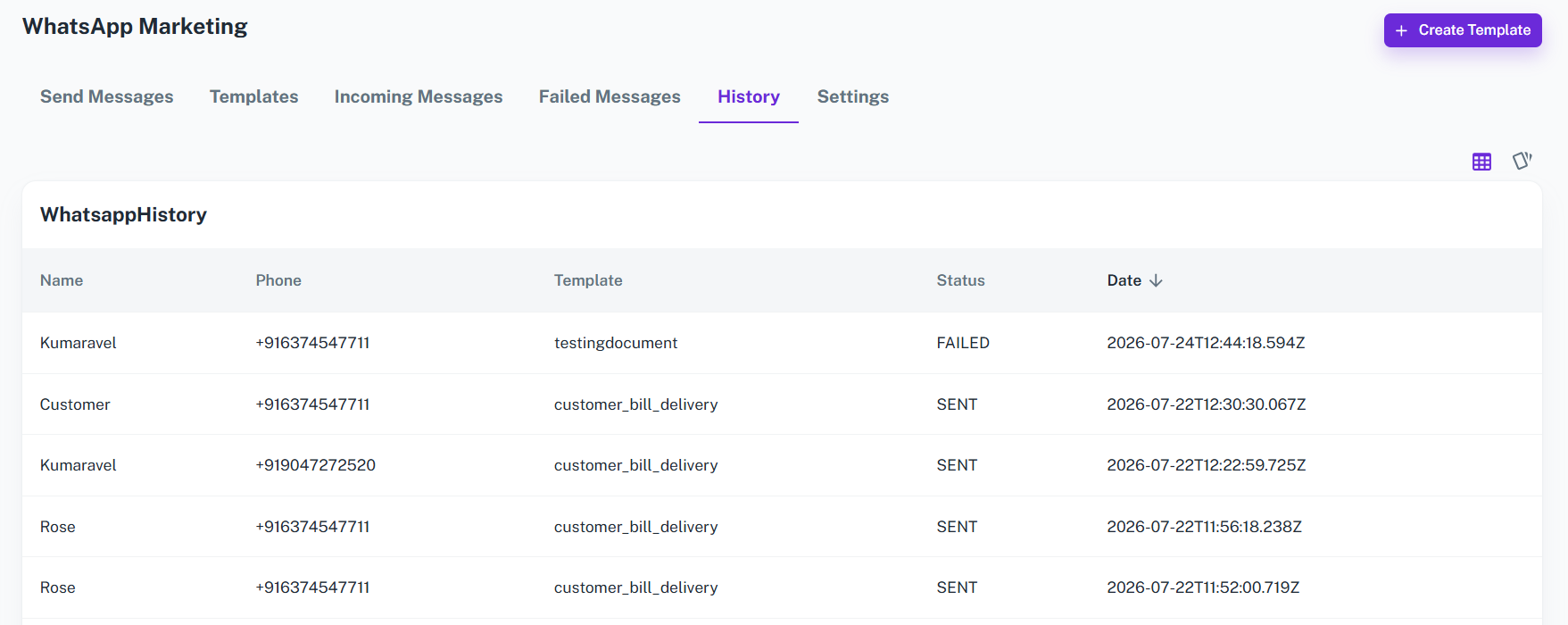
WhatsApp History
Overview
Maintain a centralized history of WhatsApp communication and activities. Review previous messages and communication records to understand when and how customers and suppliers were contacted.
Key Highlights
- View WhatsApp communication history
- Track sent messages
- Track received messages
- Review templates used
- View recipient information
- Monitor message status
- Track communication dates
How It Works
- Open the History section.
- Browse previous WhatsApp communication.
- View recipient details and phone numbers.
- Review the template or message information.
- Check message status and activity date.
Workflow
The system maintains WhatsApp communication records so users can review previous interactions with customers and suppliers. This provides a clear history of messaging activities and helps businesses track communication and follow-ups from one place.